
- Open the Voze Pro app.
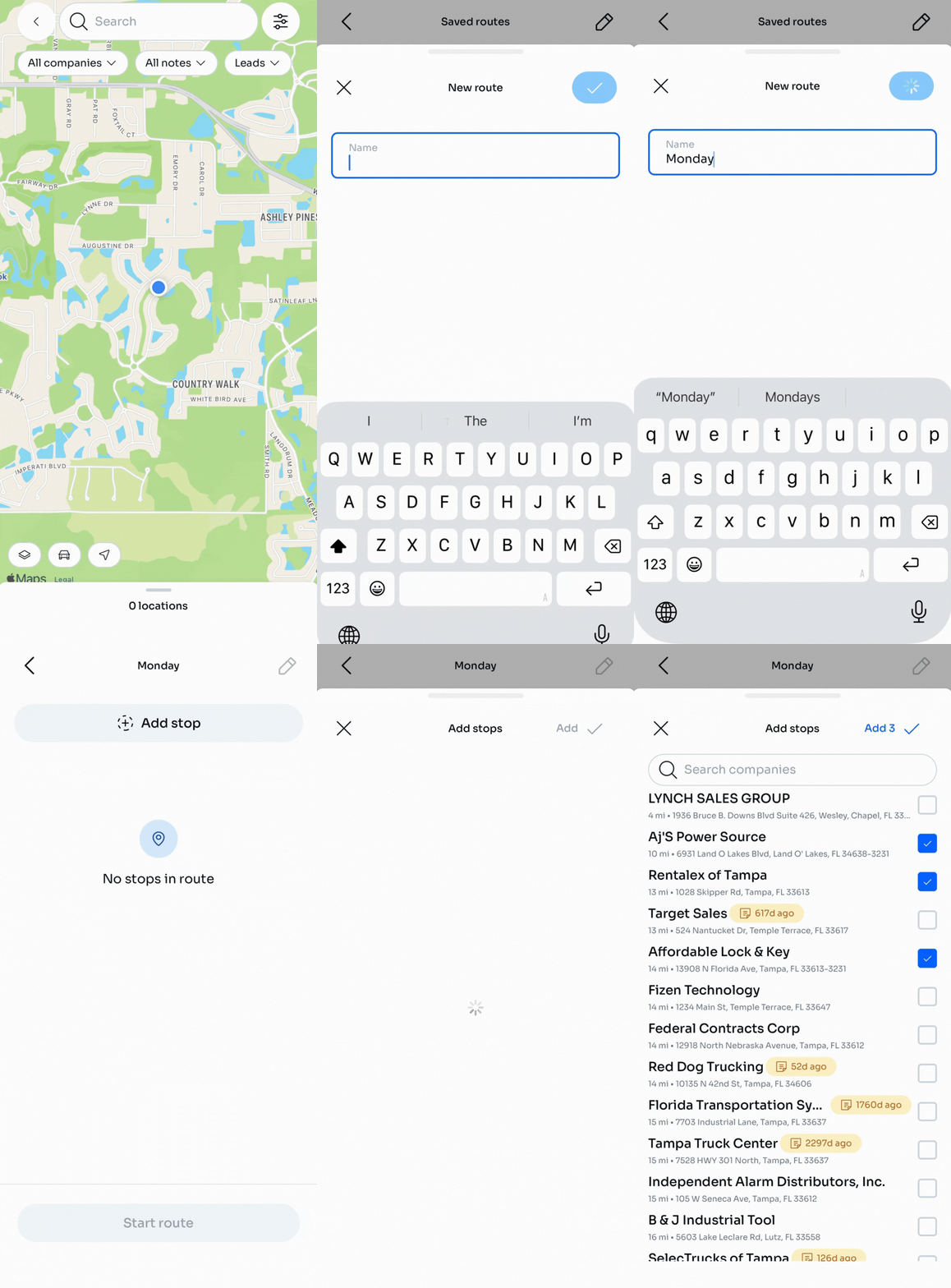 Tap the map.
 - Tap the car icon to open Saved routes.
- Tap New route.
- Name your route, then tap the blue checkmark. Use a name that makes sense at a glance — "Monday Route," "Downtown Loop," or "North Side Tuesday."
- Go back to the map
- Tap a company.
- Tap the three-dot-menu
- Tap Add to route.
- Tap the route you just created.
- Tap Confirm to add your company to the route.
- Repeat this process for every company you want to add to this route
- To edit a route see Edit a route
🔥 Hot tip: Filter the map to Days since last note of 90 days or more— the overdue accounts in your planned area show on the map. Add them as stops and your route becomes a focused sweep of neglected territory.