
@Mention teammates in a note
- Open the Voze Pro app.
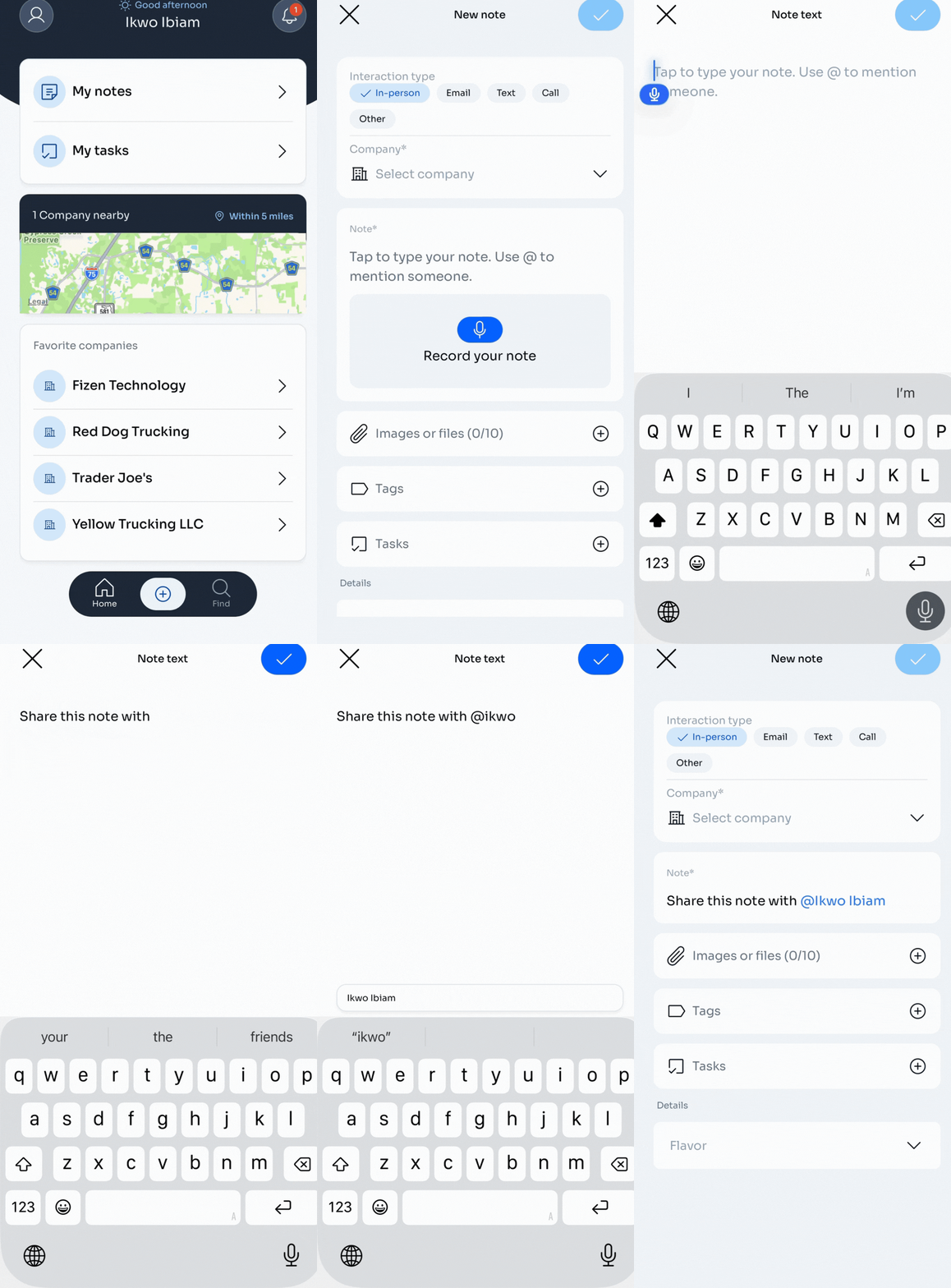
- Tap the + icon and select Create a note.
- Once you're on the New note screen, tap the blue microphone icon and start talking, or type directly into the note field.
- To @mention a teammate or manager while recording, say “Share this note with [First Name, Last Name].”
- To @mention a teammate or manager while typing, type @, then tap the teammate's name from the list. The rest of the name will autofill.
- Tap the blue checkmark to save and return to the New Note screen.
- Finish up the note. To learn how, see Create a note.
- Tap the blue checkmark to save. Your teammate will get a notification.
🔥 Hot tip: Only teammates in your organization who use Voze can be @mentioned. If you don't see someone in the suggestions, check with your admin that they're on the right team or have access to the company.
@Mention teammates in a comment
- Open the Voze Pro app.
Locate the note you want to comment on. You can: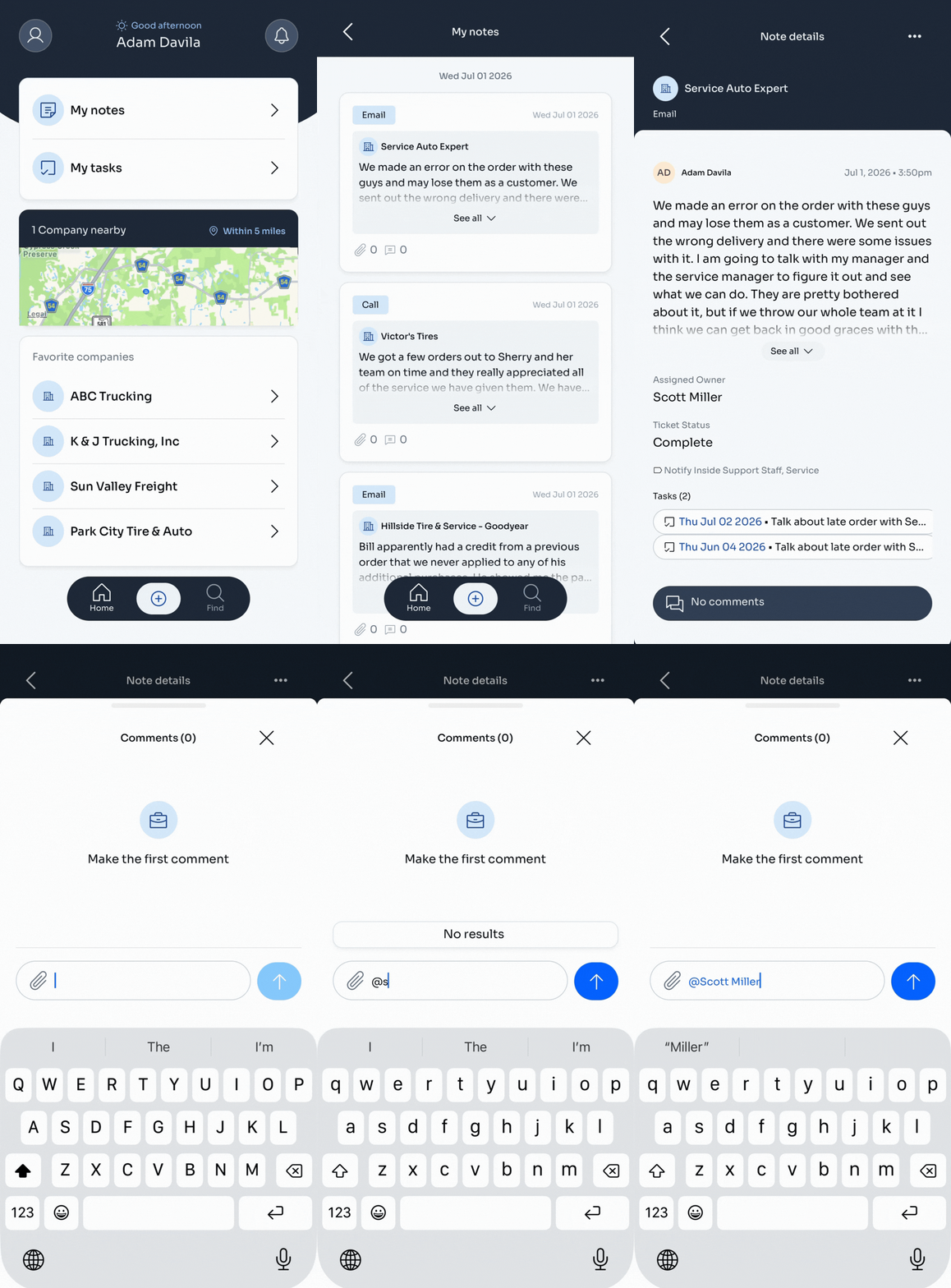
- Tap My notes on the home screen to see your recent notes.
- Tap Find in the bottom navigation, then the Notes tab. Scroll your recent notes or search.
- Tap Find in the bottom navigation, then the Companies tab. Search for the company the note is attached to, select the company, then tap the Notes tab.
- Tap the note.
- Tap Comments at the bottom of the note. The count and label update as comments are added.
- Type your comment in the comment field.
- Type @ and begin typing the teammate's name, then select them from the list.
- Optional: Tap the paperclip to add an attachment. See Comment on a note.
- Tap the blue arrow to post. Your teammate will get a notification.
You no longer need to type the @ when mentioning a teammate in order to send them a notification of your comment. They will be notified simply by another comment to a note in which they were already mentioned.
🔥 Hot tip: Each task reminder and @mention of your name lands in your Notifications — found by tapping the bell icon from the home screen.