
-
Tap the map from your home screen.
- Tap the Leads dropdown
- Tap the toggle on to Show third-party leads.
- Google leads will appear.
- Tap the toggle to turn on Google leads.
- Tap + Add Keywords and type the word or phrase you want to search for.
- Tap the box next to each keyword or phrase. A blue checkmark will appear in each box.
- Tap Apply filters.
-
Lead pins from your active keywords appear on the map.
-
- To convert a lead to a new company and add it to a territory:
- Tap any lead
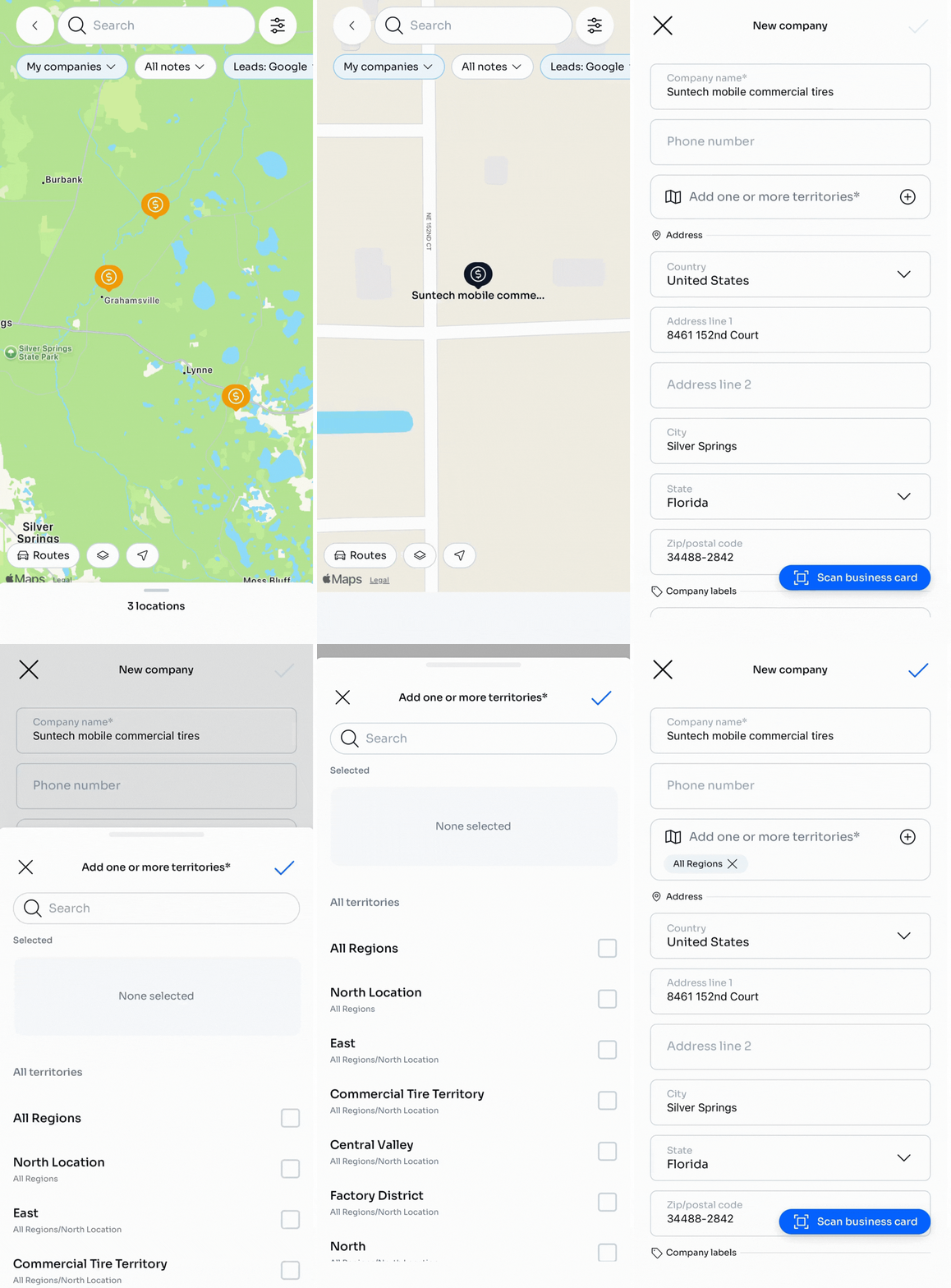
- Tap +Add to companies
- Fill out the New company screen
- Tap the + to Add one or more territories
- Tap the blue checkmark to save
You may also access leads by:
-
Tapping the Filter icon to open filter controls.
- Tap the toggle on to Show third-party leads.
- Google leads will appear.
- Tap the toggle to turn on Google leads.
- Tap + Keyword and type the word or phrase you want to search for.
- Tap the box next to each keyword or phrase. A blue checkmark will appear in each box.
- Tap Apply filters.
-
Lead pins from your active keywords appear on the map.
-
- To remove a keyword:
- Swipe left on it and tap REMOVE or uncheck the box and tap + Add keywords to add additional words or phrases.
Keyword limits: Save as many keywords as you want, but Google limits active searches toggled on to 3 at a time.
🔥 Hot tip: Build a small library of keywords for the prospects you hunt most — "Trucking," "Concrete," "Municipality." Activate the set that matches today's plan and the map turns into a fresh call list.