
- Open the Voze Pro app.
- Tap the + icon and select Create a company.
🔥 Hot tip: Scan a business card right from the New company screen — Voze fills in the company name, phone, and address for you. To learn how, see Scan a business card.
- Enter the company name in the Company name field.
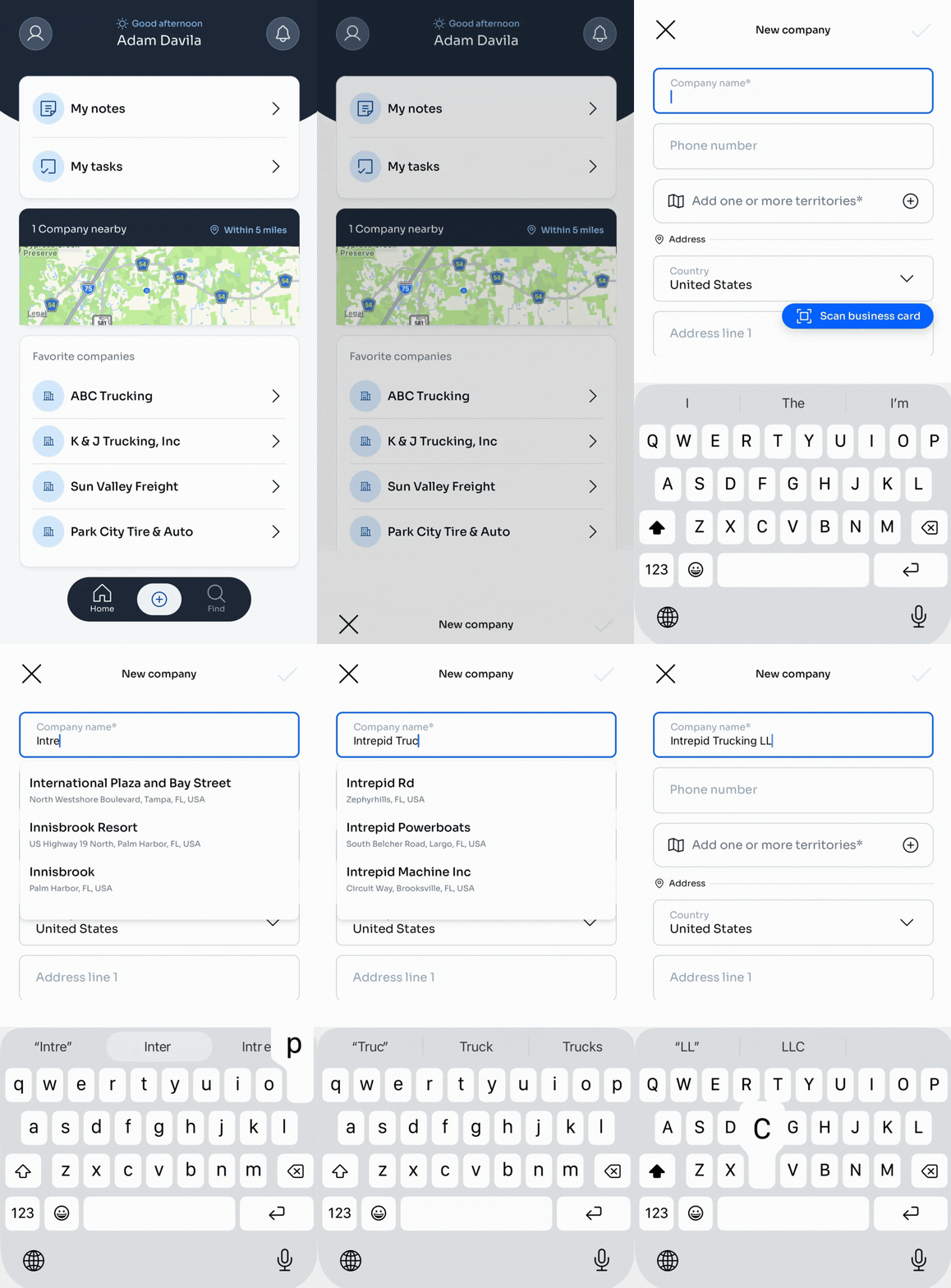
- Tap Add one or more territories to choose where this company belongs. You can search for a territory by name, choose a Recent territory, or scroll All territories. To add territories:
- Tap the checkbox next to each territory you want to add. Your selections appear under the search bar.
- To remove a territory, tap the X next to its name or unselect the checkbox.
- Tap X to return to the New company screen.
- Add the company's address.
- Add company labels. Some label categories are required.
- Tap a Company labels category to open its list
- Search for a label by name, or scroll the list to browse
- Tap the checkbox next to each label that applies. Your selections appear in the Selected box
- To remove a label, tap the X next to its name or unselect the checkbox
- Tap the blue checkmark to save the labels and return to the New company screen. Repeat for any other label categories you want to add
- Tap the blue checkmark to save the company.
- To learn how to add a company to your Favorite companies list on your home screen, see Favorite a company.
🔥 Hot tip: Creating a note and realize the company doesn't exist yet? In the New note screen, tap the Select company field and then +Company to add it.