
🔥 Hot tip: Record or type your note first while the conversation is fresh, then add photos or files. To learn how, see Record a note.
- Open the Voze Pro app.
- Tap the + icon and select Create a note.
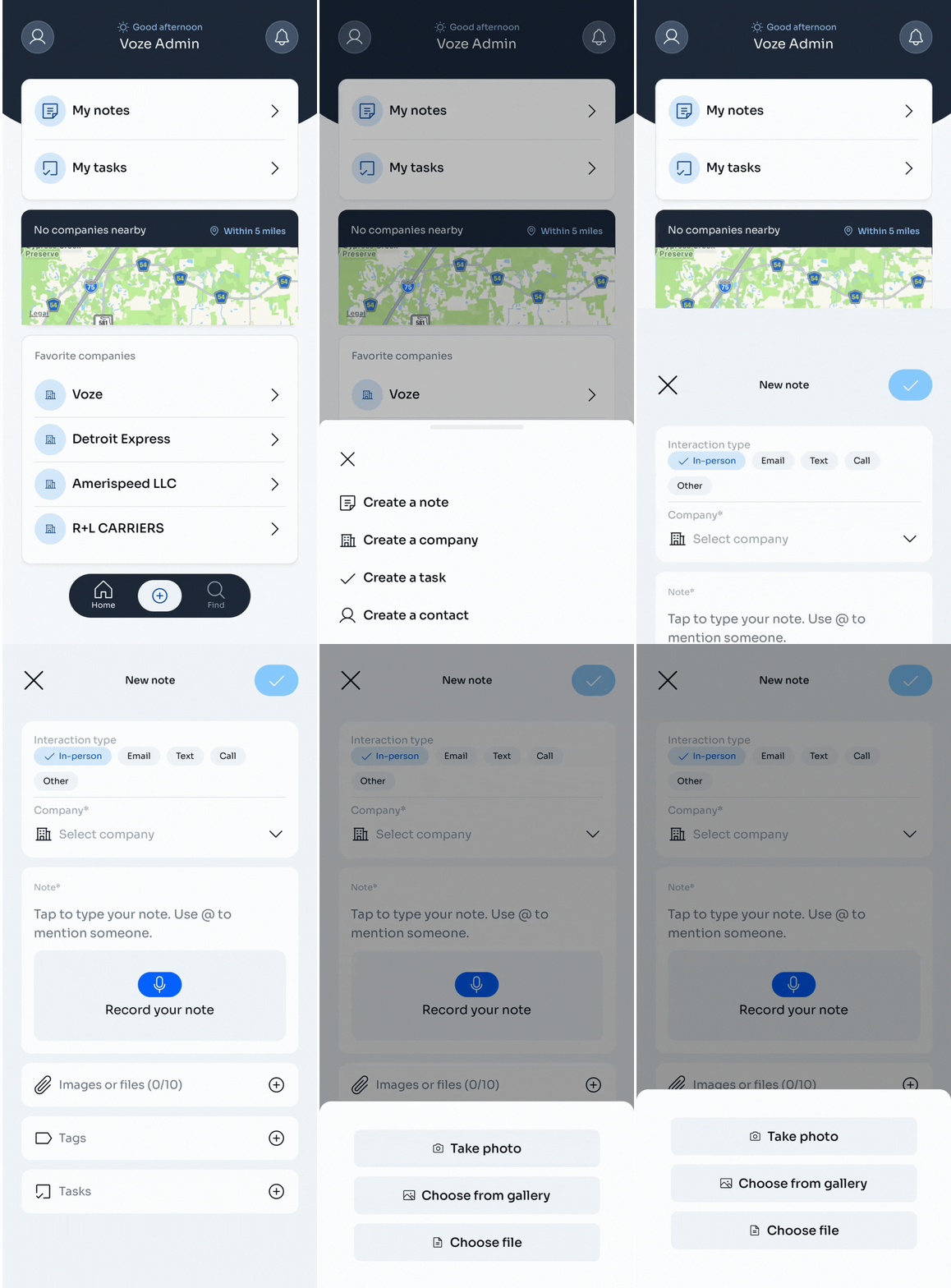
- Tap the Images or files field, or tap the + next to it.
- Pick how you want to add up to 10 attachments:
- Tap Take photo to open your camera. Snap the photo, then tap Retry to take another or tap OK to save.
- Tap Choose from gallery to pick from your photos. Select one or more images, preview if you want, then tap Done.
- Tap Choose file to browse your files. Select one file. To attach more files, repeat this step. Files can only be added one at a time.
- To remove an attachment, tap the X next to it.
- Finish up the note. To learn how, see Record a note.
- Tap the blue checkmark on the New note screen to save.
🔥 Hot tip: Snap pictures of business cards, signed paperwork, jobsite photos, brochures, or invoices.
Need to add an attachment later? To learn how, see Edit a note.