
We believe in meeting sales reps where they are. We understand that you're always on the move, juggling client visits and driving routes, with little time for complex data entry. That's why we've designed our software to be flexible and intuitive, allowing you to capture rich information your way - whether it's by voice, typing, or even snapping a picture. Voze isn't just another sales tool; it's your personal assistant, designed to make your job easier and help you close more deals.
In this tutorial, let's go over how you can create a manual text note inside the Voze mobile app, and also how to edit your existing notes.
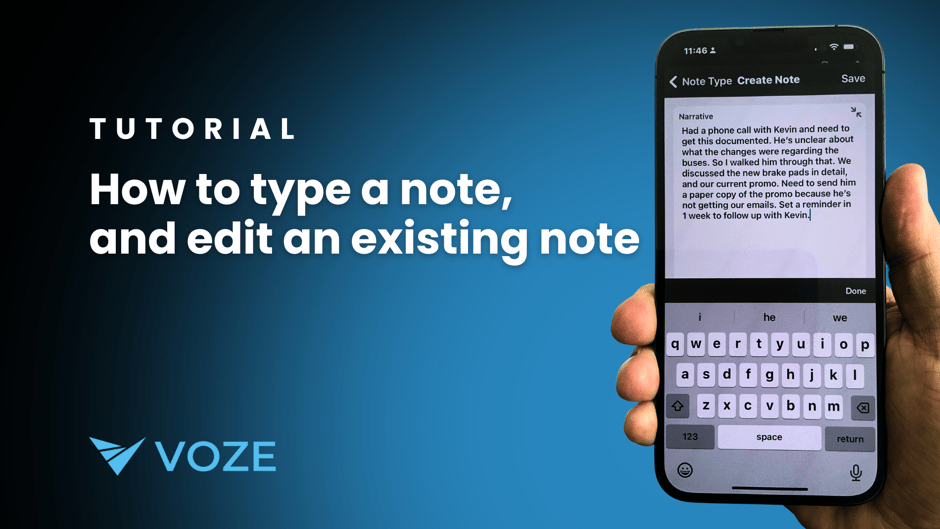
How to type a note in Voze (iOS)

1. Open the Voze app on your iOS device.
2. Tap on the ⨁ menu option.
3. Select "Type note" to create a manual text note.
4. You'll be presented with the same options as when recording a note, such as choosing the company, call type, opportunities, and any custom checkbox fields or company labels specific to your account.
5. Fill out the relevant fields for your note. Don't worry about the order of the fields, as they may appear in a different order each time you create a note.
6. Once you've completed the necessary fields, tap "Save."
7. You'll be taken to the new note's detail screen, where you can review the information you've entered.
How to type a note in Voze (Android)
1. Open the Voze app on your Android device.
2. Tap on the ⨁ menu option.
3. Select "Type note" to create a manual text note.
4. You'll be presented with the same options as when recording a note, such as choosing the company, call type, opportunities, and any custom checkbox fields or company labels specific to your account.
5. Fill out the relevant fields for your note. Don't worry about the order of the fields, as they may appear in a different order each time you create a note.
6. Once you've completed the necessary fields, tap "Save."
7. You'll be taken to the new note's detail screen, where you can review the information you've entered.
How to edit an existing note in Voze (iOS or Android)
1. Open the Voze app on your iOS or Android device.
2. Navigate to the note you wish to edit.
3. Tap on the pencil icon at the top of the note.
5. Make the necessary changes to the narrative.
7. Once you've made all the desired changes, tap "Save."
8. The updated information will be reflected on the call note detail screen.